Publishing your game on gd.games
gd.games is GDevelop's own game platform: GDevelop hosts your game for you, and players play it in their browser, on a computer or a phone.
Publishing there is free, your game gets a link you can share with anyone, and that link stays available. You don't need a website or a server: everything happens from the editor.
Publishing your game
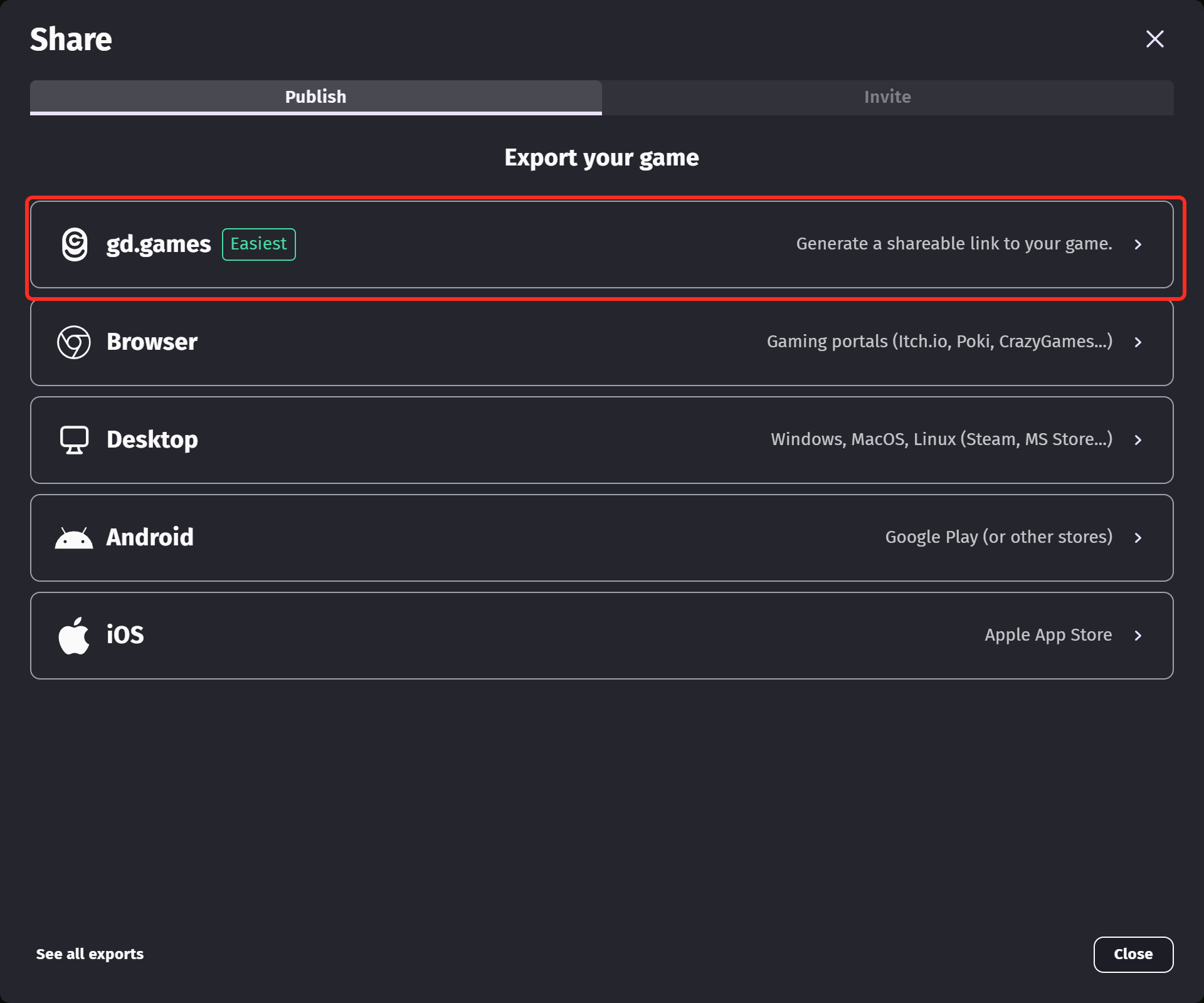
First, make sure you are logged in to GDevelop. Then click the Share button at the top of the editor, and pick gd.games in the list of exports.
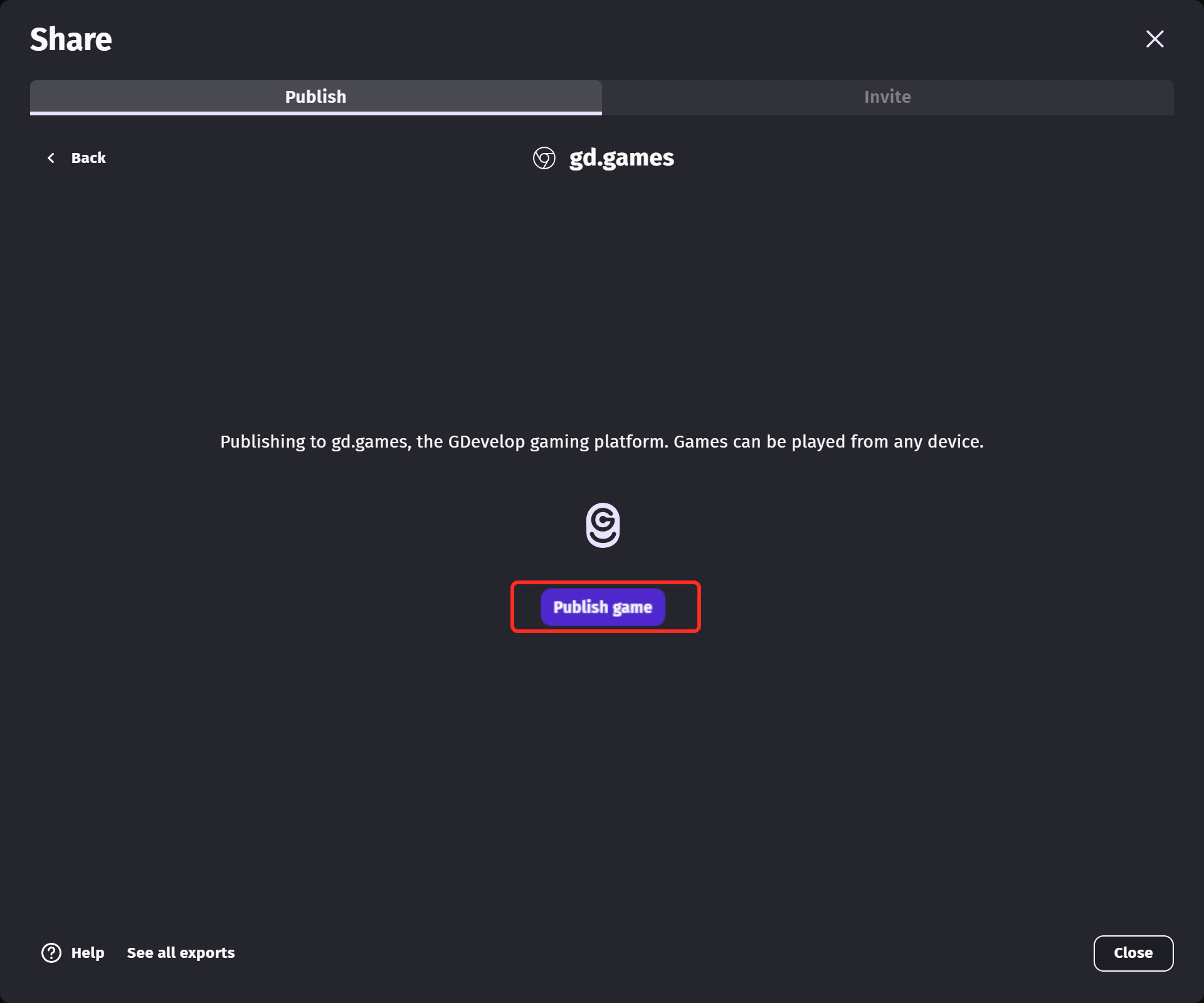
Click Publish game to build your game and send it to the servers.
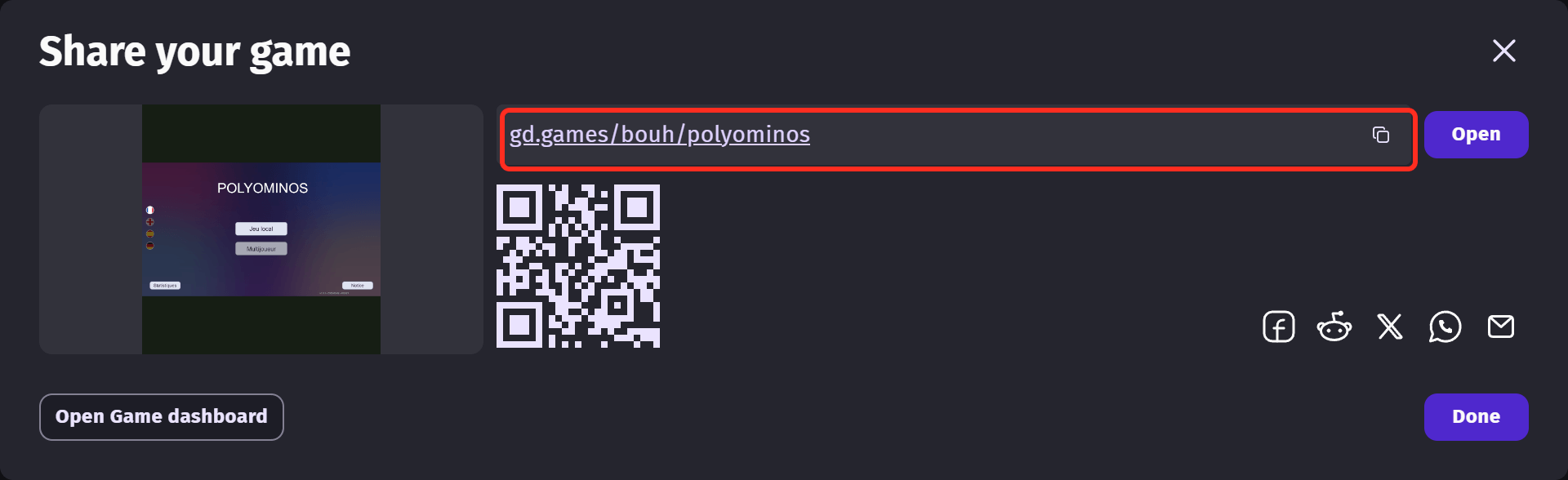
When the upload is finished, the link to your game is displayed on screen. You can copy it, scan the QR code to open the game on a phone, or send it through social networks. Anyone with the link can play your game.
Sharing a private version for testing
Once your game has been published a first time, the export screen offers a new choice: the button becomes Publish new version, with an Update game page switch under it.
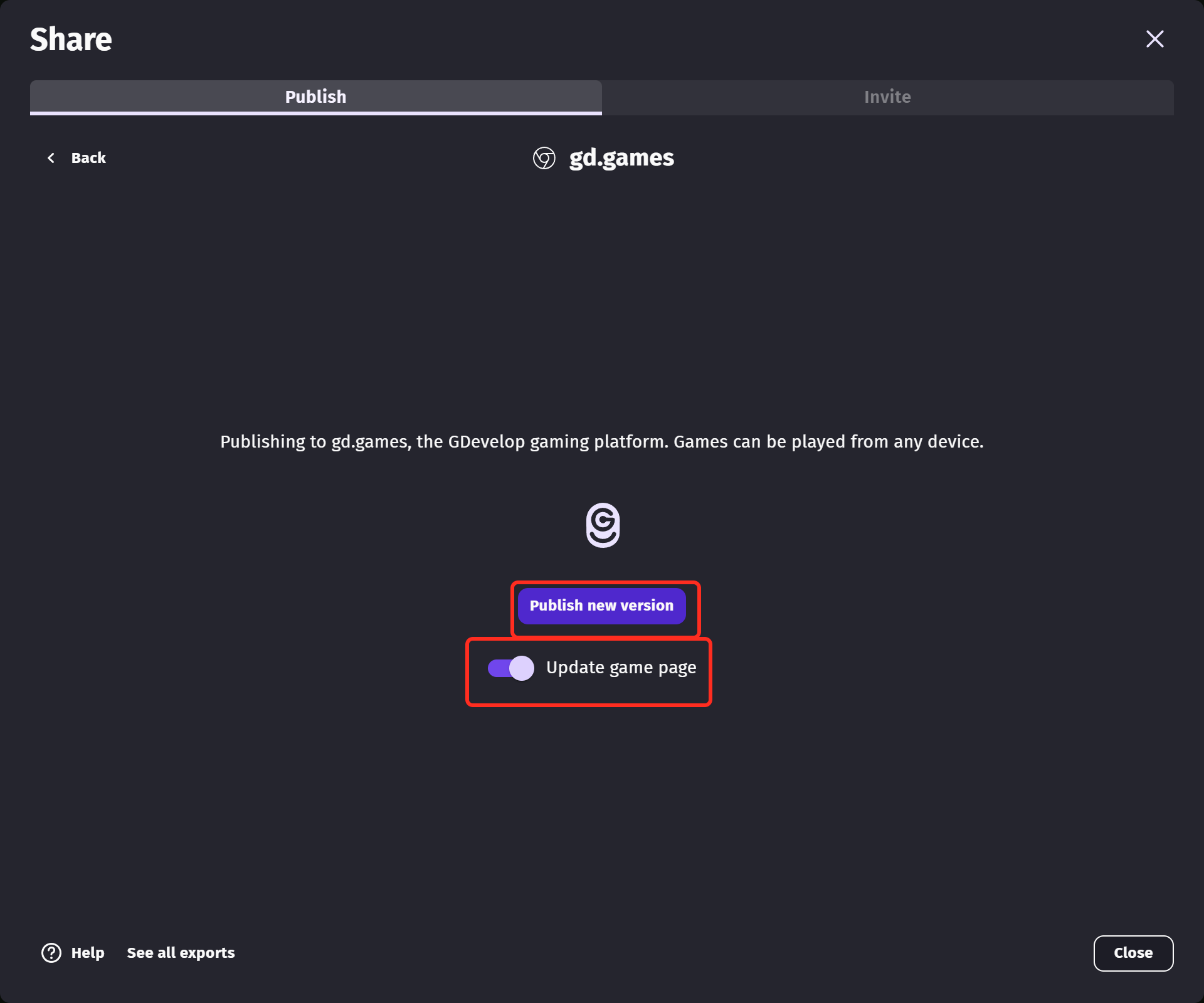
This switch decides whether the version you are publishing replaces the one on your public game page:
- On: the version you publish becomes the one everyone plays on your game page.
- Off: your game page keeps the version it already had, and you get a separate link for the version you just published.
Turn it off to share a work-in-progress with testers without changing what your players see.
Your game page on gd.games
Each game you publish has its own dashboard. Open it with Open Game dashboard right after an export, or from the project manager under Game settings. It gathers the link to your game, its analytics, the feedback you receive from players, and the GDevelop services your game can use, like leaderboards, multiplayer, etc.
Tip
Your game can be promoted on the gd.games homepage. See the Marketing Campaigns to learn how.
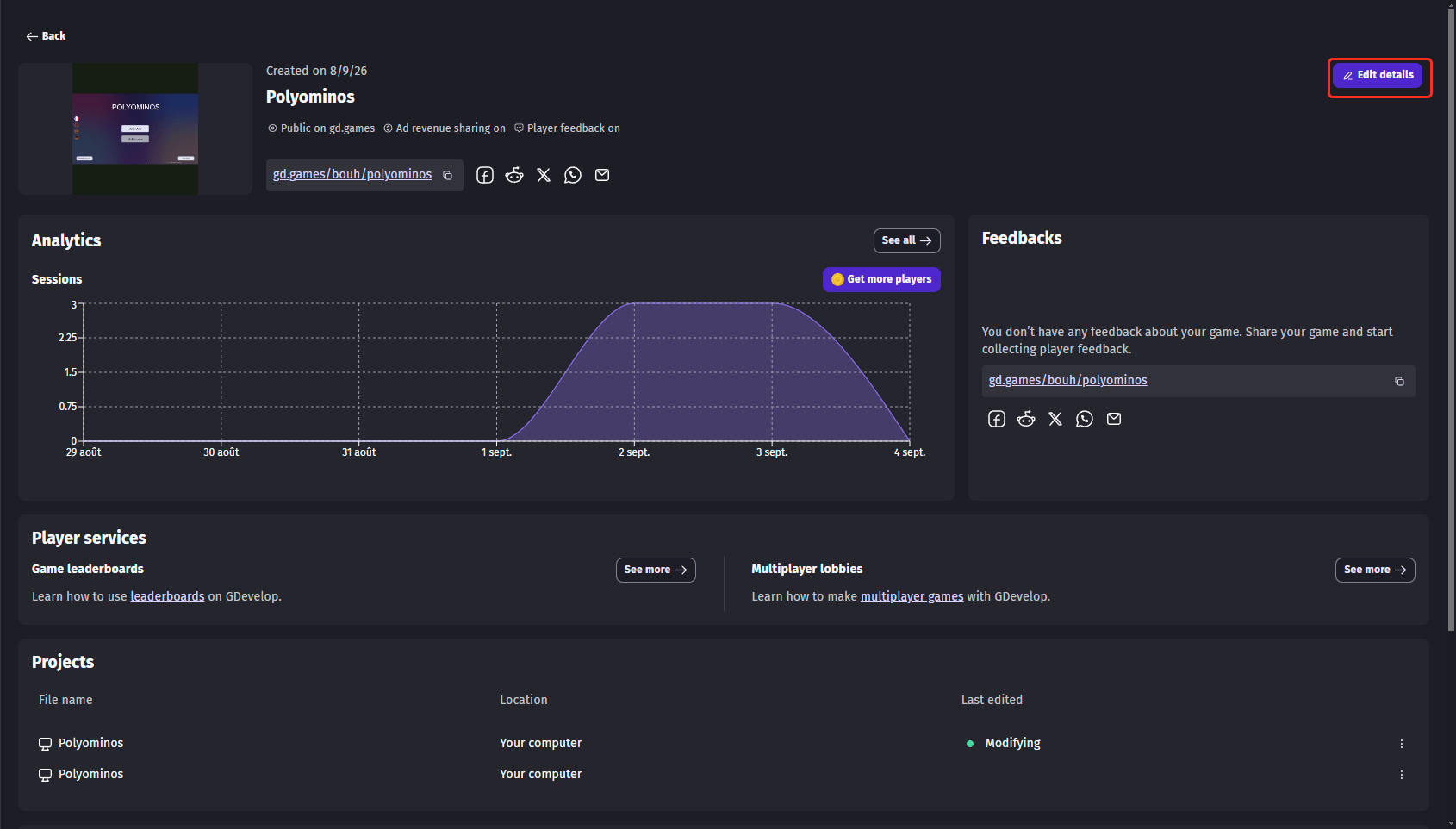
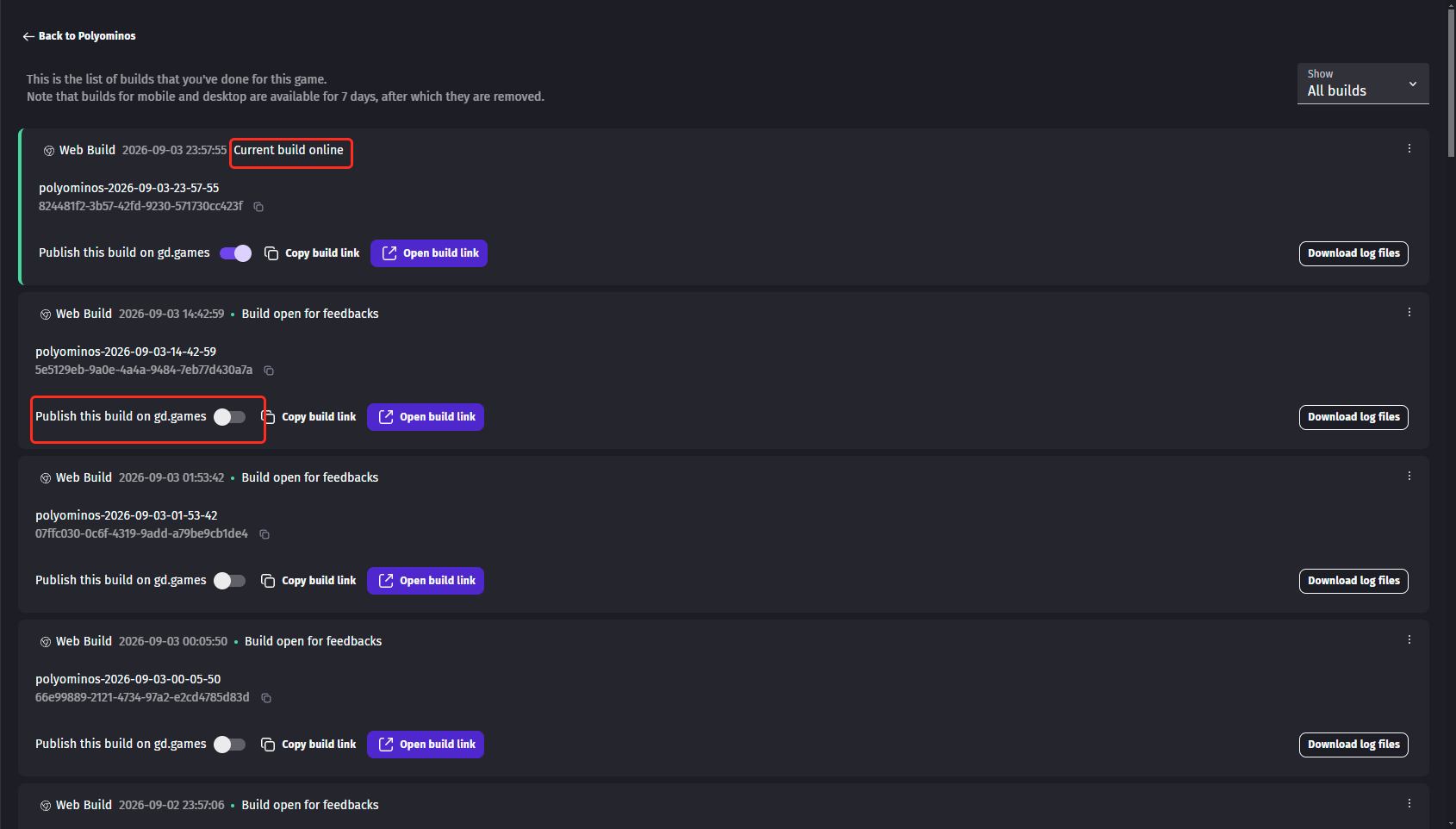
Each upload creates a build, and the dashboard lists all of them under Exports at bottom of a dashboard. The build played on your game page is marked as online. To put an older build back in front of your players, turn on Publish this build on gd.games.
Adding a thumbnail
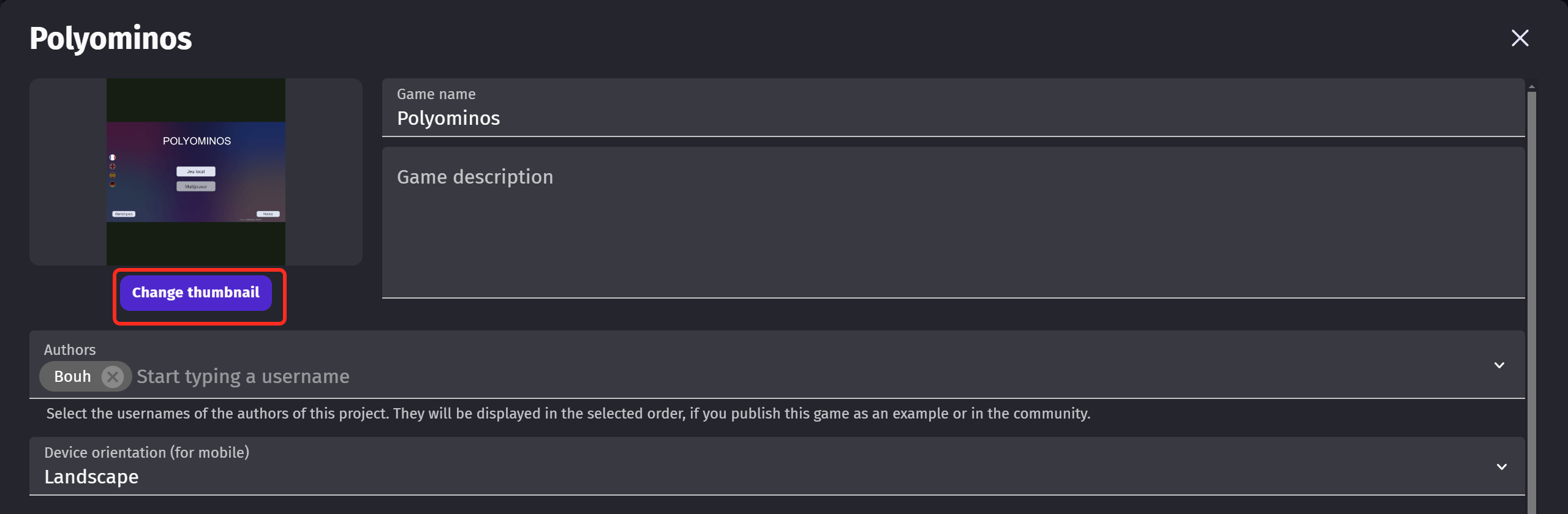
A thumbnail in 16:9 makes your game far more attractive on gd.games, and we recommend adding one.
Open Edit details from the game dashboard, then click Select thumbnail or Change a thumbnail. This is also where you write the name and the description shown to players on your game page.
Taking your game off gd.games
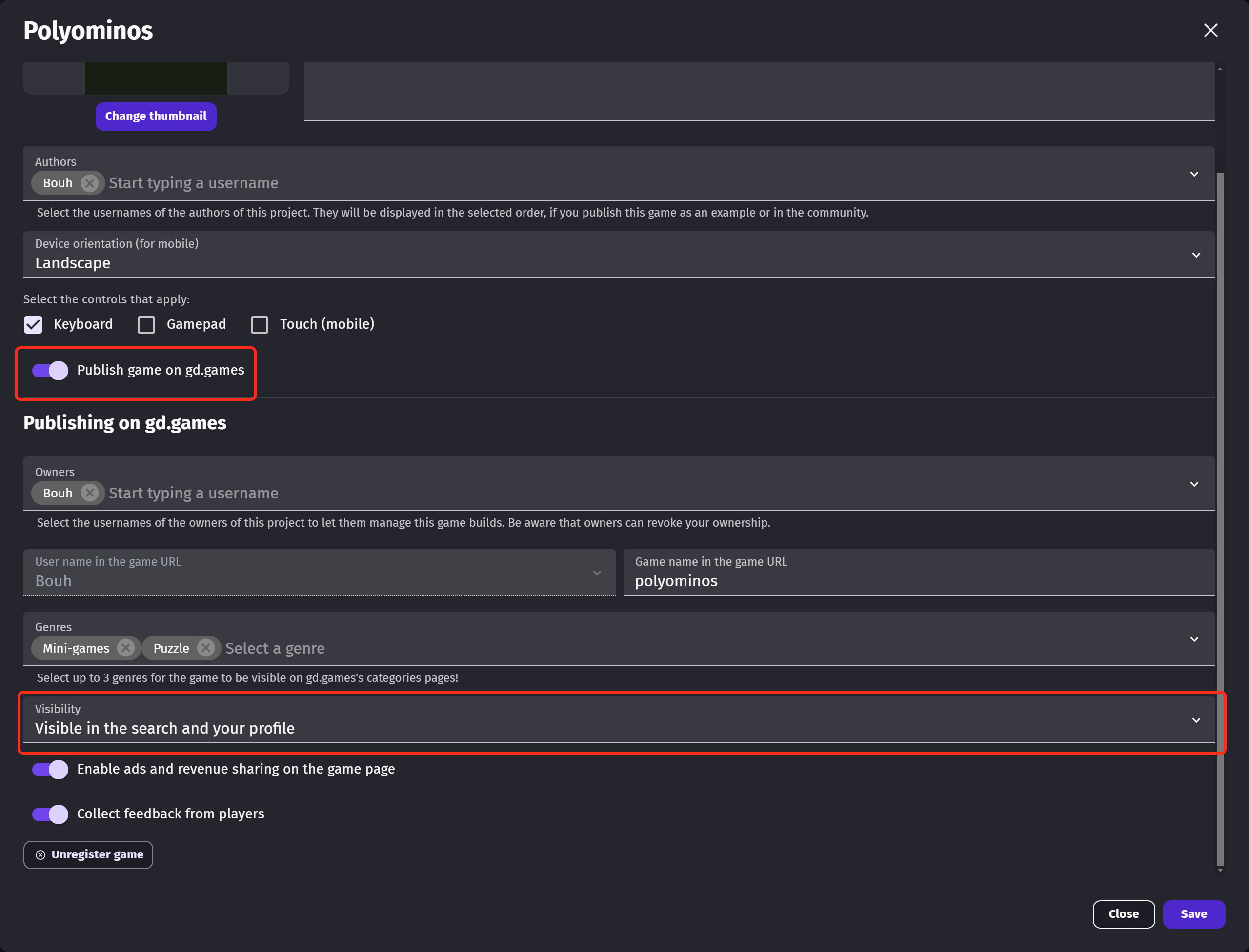
To remove your game from gd.games, open Edit details from the game dashboard and turn Publish game on gd.games off. Your builds and your analytics are kept: only the public page disappears.
The Visibility setting is a middle ground. Your game page stays online for the people who have the link, but the game is no longer shown in the search results nor on your profile.
Export to other platforms (iOS, Android, Windows, macOS, Linux)
See the other export options to learn how to publish your game on other platforms.